To upload SVG files to Cricut Design Space, unzip your download, open a new project, click Upload, then Upload Image, then Browse, select the .svg file and click Upload. The design then appears in your uploads, ready to add to the canvas. This guide covers every step on Windows, Mac, iPhone, iPad and Android, plus quick fixes when an upload fails.
Key takeaways
- Extract the ZIP folder first, because Cricut Design Space cannot read a zipped file.
- On desktop the path is New Project, Upload, Upload Image, Browse, then Upload.
- On the mobile app you upload from the Files app (or Photos for images), so the unzipped SVG must be saved there first.
- Pick the .svg for cutting and the .png only when you want Print Then Cut.
- Most failed uploads come from a zipped folder, the wrong file type or an unstable connection.
Before you start: get the right file ready
A design download is a ZIP folder containing several formats. Extract it (right-click and Extract All on Windows, double-click on Mac, tap it in the Files app on iPhone, or use Extract in your Android file manager). Inside you will find SVG, PNG, EPS and DXF versions of a standard design. For cutting on a Cricut, choose the file ending in .svg. If you are not sure what each file does, our guide to using SVG files includes a file-by-machine table.
Menu names can change between app versions, so if a button looks slightly different on your screen, look for the same idea in the same area.
How to upload SVG files to Cricut on Windows or Mac
- Open Cricut Design Space and sign in to your Cricut account.
- Click New Project to open a blank canvas.
- In the left-hand panel, click Upload.
- Click Upload Image, then Browse.
- Find your unzipped folder, select the file ending in .svg and click Open. You can also drag the file onto the upload window.
- On the preview screen, rename the image if you like and add tags (for example “christmas” or “shirt”) so you can search for it later.
- Click Upload. The design is saved to your uploads.
- Select the design in your recent uploads and click Add to Canvas (in some versions it is placed on the canvas automatically).
Your SVG keeps its layers, so you will see each color as a separate layer in the Layers panel. Uploaded images are stored in your Cricut account, so they are available on your other devices when you sign in.
How to upload on iPhone or iPad
- Download the design in Safari or another browser and save it to the Files app.
- In Files, tap the ZIP once to extract it into a regular folder.
- Open the Cricut Design Space app and start a new project.
- Tap Upload at the bottom of the canvas.
- Choose Browse Files, open the extracted folder and tap the .svg file.
- Name and tag the image, then tap Upload or Save.
- Select the image in your uploads and tap Add to Canvas.
Choosing Photos instead of Files only shows images such as PNG or JPG, which is why an SVG may seem to be missing on iOS.
How to upload on Android
- Download the design; it usually lands in your Downloads folder.
- Open your Files app, tap the ZIP and choose Extract.
- Open the Design Space app and start a new project.
- Tap Upload, then choose to browse your files.
- Go to the extracted folder and tap the .svg file.
- Name, tag and save the image, then add it to the canvas.
Uploading a PNG instead of an SVG
When you upload a PNG, Design Space opens an image cleanup step where you can remove the background, then asks whether you want a cut image or a Print Then Cut image. Choose Print Then Cut for full-color stickers and printable iron-on. For plain vinyl cutting, the SVG is cleaner because it already contains vector cut lines and separate color layers. Designs whose title ends in “PNG” are PNG-only and meant for printing, sublimation and DTF rather than cutting.
Upload fails? Quick fixes
| What you see | Likely cause | Quick fix |
|---|---|---|
| File is greyed out or won’t select | Folder is still zipped | Extract the ZIP, then select the .svg inside it. |
| SVG not visible on iPhone | Browsing Photos instead of Files | Tap Browse Files and open the extracted folder. |
| Design uploads as a flat image | PNG or JPG was chosen | Upload the file that ends in .svg. |
| Upload spins or errors out | Connection or app glitch | Check your internet, restart Design Space and try again. |
| Upload succeeds but canvas looks empty | White layer on white canvas, or design is tiny | Change the layer color or zoom in. |
If you still cannot upload SVG files to Cricut, or you see deeper problems such as designs that cut as one piece, text that won’t cut or layers out of place, see how to troubleshoot SVG files in Cricut Design Space. If a Wow SVG file itself is corrupt or will not download, email support@wowsvg.com and the team will help.
What to do after the upload
Once the design is on the canvas, resize it for your project and get it ready to cut. How to use SVG files in Cricut Design Space after uploading explains Ungroup, Attach, Weld and Make It. If you need practice files, the free SVG section is a good place to start, and seasonal collections such as Halloween SVG files and Thanksgiving SVG files are ready for the next holiday project.
Designs to practice with
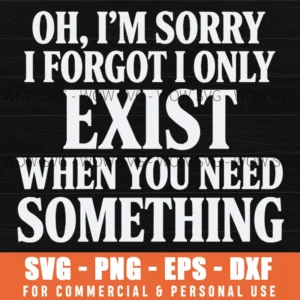
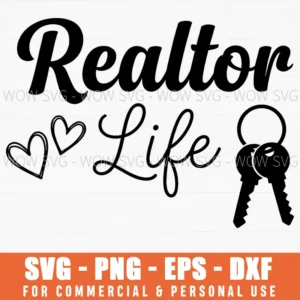
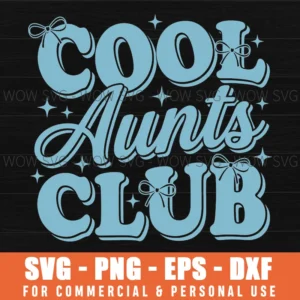
Want to try these steps on a real file? These designs from our shop are simple to cut and weed, and each one includes SVG, PNG, EPS and DXF files.
Frequently Asked Questions
Why can’t I upload SVG files to Cricut from my phone?
On a phone the SVG must be unzipped and saved in the Files app, and you need to choose Browse Files rather than Photos. Photos only shows images like PNG and JPG.
Do I need Cricut Access to upload my own SVG files?
No. Uploading your own SVG, PNG, JPG and DXF files is part of the free Design Space features. Cricut Access is a separate subscription for Cricut’s own image and font library.
Where do uploaded SVG files go in Design Space?
They are saved to your uploads in your Cricut account. Click Upload on a new project to see recent uploads and search them by name or tag.
Should I upload the SVG or the PNG?
Upload the SVG for cutting vinyl, iron-on and cardstock. Upload the PNG only for Print Then Cut, such as stickers or printable iron-on.