Most problems with SVG files in Cricut Design Space have simple causes: the folder is still zipped, the wrong file was uploaded, a white layer is hiding on the white canvas, or the pieces are not attached or welded. When you troubleshoot SVG files in Cricut, check those four things first and you will solve most issues in minutes. This guide lists each common problem with its cause and fix.
Key takeaways
- An SVG that will not upload is usually still inside its ZIP folder, so extract it first.
- A design that looks blank often has white layers on the white canvas; change the layer color to see it.
- If everything cuts as one piece, you probably uploaded the PNG or the layers were welded; use the SVG and keep layers separate.
- Attach keeps pieces in position on the mat; without it, Design Space rearranges them.
- If a downloaded file is truly corrupt, Wow SVG support can send a working copy.
How to troubleshoot SVG files in Cricut: quick table
| Problem | Most likely cause | Fix |
|---|---|---|
| File won’t upload or can’t be selected | Still zipped | Extract the ZIP and upload the .svg inside |
| Design looks blank after upload | White on white, or very small | Change layer colors, zoom in |
| “Image too large” or design won’t fit on the mat | Size larger than the mat or Print Then Cut area | Resize, or split the design across mats |
| Everything cuts as one piece | PNG uploaded, or layers welded/flattened | Upload the SVG and keep layers separate |
| Too many tiny pieces | Design shrunk too small, or cut as a cut image from a PNG | Enlarge, use Contour, or use the SVG |
| Text not cutting correctly | Wrong operation or script not welded | Set Basic Cut and Weld script text |
| Layers out of place on the mat | Pieces not attached | Attach pieces of the same color |
Upload problems
The file won’t upload because it’s still zipped
Every download arrives as a ZIP folder, and Design Space cannot open it. On Windows, right-click and choose Extract All; on Mac, double-click it; on iPhone or iPad, tap it in the Files app; on Android, choose Extract in your file manager. Then upload the file ending in .svg. Full steps are in how to upload SVG files to Cricut.
You uploaded the wrong file (PNG instead of SVG)
The folder holds SVG, PNG, EPS and DXF versions with the same name. If you pick the PNG, Design Space treats it as a flat picture: you lose separate color layers and may get one solid shape or jagged edges. Delete it and upload the .svg. Note that designs whose title ends in “PNG” are PNG-only by design and are meant for printing, sublimation or DTF, not for layered cutting.
The upload spins or shows an error
Check your internet connection, close and reopen Design Space, and try again. Very complex files can take longer to process. If one specific Wow SVG file fails on every device, email support@wowsvg.com so the team can check it and fix a corrupt file.
Display problems
The design looks blank after uploading
Many designs include white layers for dark shirts. On a white canvas they seem invisible. Open the Layers panel, select the layer and change its color temporarily. Also zoom in, check the eye icons in case a layer is hidden, and look at the size: a design imported at a tiny size can look like a dot.
“Image too large” or the design won’t fit on the mat
Design Space limits how big a cut can be on your mat or material, and Print Then Cut has a smaller maximum size. Reduce the size with the proportion lock closed. For large signs, ungroup the design and cut big pieces on separate mats. Our resizing guide has typical sizes for common projects.
Cutting problems
Everything cuts as one piece
This happens when the PNG was uploaded as a cut image, when the design was welded, or when it was flattened. Re-upload the SVG, avoid Weld across different colors, and keep Flatten only for Print Then Cut.
Too many tiny pieces
Detailed designs shrunk for pockets, baby shirts or small decals can create pieces smaller than the blade handles cleanly. Enlarge the design, choose a bolder design for small projects, or select a layer and use Contour to hide the smallest cut lines.
Text not cutting the way it looks
Check the layer’s operation; if it is set to Pen or Draw, the machine will try to draw instead of cut. Script text you add yourself must be welded, or each letter will cut separately with overlapping lines. Writing-style fonts are meant for pens and may not cut well.
Layers out of place on the mat
Design Space arranges each color to save material unless pieces are attached. Select all pieces of the same color, click Attach, and check the mat preview again. To understand Attach, Weld, Slice and Combine in more depth, read how to use SVG files in Cricut Design Space after uploading.
Machine and material checks
When you troubleshoot SVG files in Cricut and the file itself looks fine, check the machine and material next:
- Confirm you chose the exact material in the Make screen; a wrong setting causes incomplete or torn cuts.
- Clean the blade of vinyl or paper fibers, and replace it if cuts stay ragged.
- Make sure the material sits flat and the mat is sticky enough.
- Run a small test cut before cutting a full sheet of new material.
Choosing clean, well-built files helps too. Every design in the free SVG section and paid collections such as trending SVG designs includes SVG, PNG, EPS and DXF, so you can always fall back to the right format. Menu names can change between app versions, so look for the same tools if your screen differs slightly.
Designs to practice with
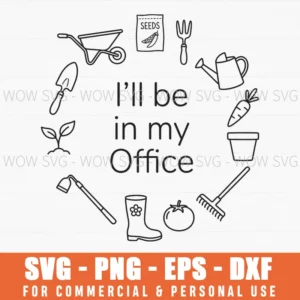
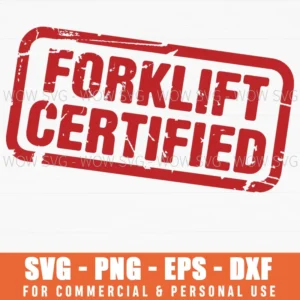
Want to try these steps on a real file? These designs from our shop are simple to cut and weed, and each one includes SVG, PNG, EPS and DXF files.
Frequently Asked Questions
Why does my SVG file look blank in Cricut Design Space?
Usually the design has white layers on the white canvas, or it imported very small. Change the layer color temporarily and zoom in to see it.
Why won’t Cricut Design Space upload my SVG?
The most common reason is that the file is still inside its ZIP folder. Extract the folder, then upload the file that ends in .svg.
Why is my design cutting as one solid shape?
You likely uploaded the PNG as a cut image, or the layers were welded or flattened. Upload the SVG version and keep each color on its own layer.
What should I do if a purchased file is corrupt?
Email support@wowsvg.com with your order details. Support fixes corrupt files and download issues.