Short answer: to convert a PNG or JPG to SVG for free, open the free PNG to SVG converter, upload your image, choose “Single color” for a cut file or “Multi-color” for layers, then click Convert to SVG and download the file. It works in your browser, with no account and no software to install. The same page also turns an SVG back into a PNG for sublimation or print-on-demand. This guide explains each setting and how to get a clean result in Cricut Design Space.
What does the WOW SVG converter do?
The converter has two tabs:
- Image to SVG: upload a PNG, JPG or WEBP image and turn it into a vector SVG file that a Cricut, Silhouette or laser machine can cut.
- SVG to PNG: upload an SVG and export a high-resolution PNG (3000 pixels wide by default, up to 6000), with a transparent or white background.
Your image is converted on your own device. It is not uploaded to our server, so you can use it with personal photos and drawings.
How to convert a PNG to SVG, step by step
- Open the free PNG to SVG converter and stay on the Image to SVG tab.
- Click the upload box and choose a PNG, JPG or WEBP file. A simple image with clear shapes and a plain background gives the best result.
- Choose a Style. “Single color (best for cutting)” makes one solid shape, which is what you want for vinyl, iron-on and stencils. “Multi-color (layers)” keeps the main colors, from 2 to 12, as separate shapes.
- For single color, move the Threshold slider until the preview shows all the lines you want. Lower keeps only the darkest parts; higher keeps lighter parts too.
- Pick a Detail level. “Smooth” makes fewer nodes and cleaner curves, “Balanced” suits most images, and “Detailed” keeps small parts of the drawing.
- Leave “Remove white background” checked so the white areas are not cut, then click Convert to SVG.
- Check the preview and click Download. If the result looks rough, change the threshold or the detail level and convert again.
How to upload the SVG to Cricut Design Space
In Design Space, click Upload, then Upload Image, and choose the SVG file you downloaded. It opens as a cut image, so you do not need to erase the background by hand. A single-color file becomes one layer; a multi-color file becomes one layer per color, which you can change or hide in the Layers panel. Resize the design on the canvas before you cut. If the file does not open as expected, read our guide on how to troubleshoot SVG files in Cricut Design Space.
How to convert an SVG to PNG
Switch to the SVG to PNG tab and upload your SVG. Type the width you need in pixels: 3000 px wide is a good size for sublimation and print-on-demand, and the height follows the design’s proportions. Keep “Transparent background” checked for shirts and mugs, or uncheck it for a white background, then click Convert to PNG and download the image.
Tips for a clean result
- Start from the largest version of the image you have. Very small images give jagged edges.
- Remove busy backgrounds, shadows and textures before converting, or crop the image to the part you need.
- For text, use the single-color style and a high threshold so thin letters are not lost.
- If you see tiny specks, choose “Smooth” or lower the detail level; they are small shapes your machine would try to cut.
- Photos of people or scenes do not convert well into cut files. A converter traces shapes, it does not redraw a design by hand.
Want a design that is ready to cut?
A converted image is a quick solution, but a design drawn as a vector from the start is cleaner and easier to weed. WOW SVG has nearly 7,000 designs in SVG, PNG, EPS and DXF, with more than 500 free SVG files. Most paid designs cost $2.50, download instantly, and commercial use of the finished products is included. A few free designs to start with:
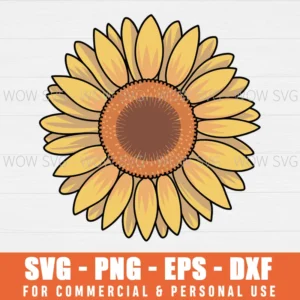
Free Sunflower SVG
a bright one-color bloom, easy to weed.
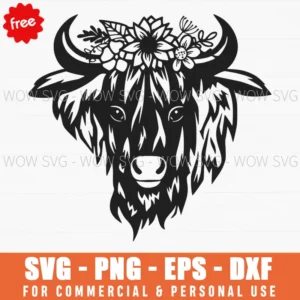
Free Wildflower Highland Cow Head SVG
a popular farmhouse design for shirts and tote bags.
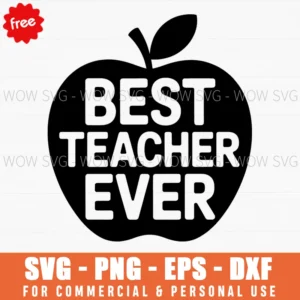
Free Best Teacher Ever SVG
a simple gift idea for mugs and tumblers.
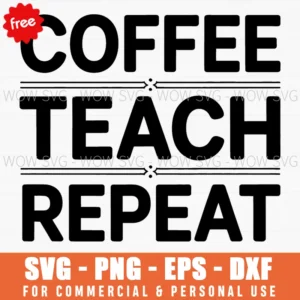
Free Coffee Teach Repeat SVG
clean lettering that cuts well in small sizes.
If you need lettering only, try our free text to SVG generator. If you cannot find the design you need, you can request a custom design.
Quick answers
Is the PNG to SVG converter free?
Yes. It is free to use, with no account, no watermark and no limit on the number of images.
Are my images uploaded to a server?
No. The conversion runs in your browser, on your device. Your image is not sent to WOW SVG.
Can I convert a JPG to SVG?
Yes. The converter accepts PNG, JPG and WEBP images.
Will the SVG work with Cricut and Silhouette?
Yes. The file is a standard SVG. Cricut Design Space opens it directly; Silhouette Studio needs the Designer Edition or higher to open SVG files.
Why does my SVG have jagged edges?
The original image is probably small or blurry. Use a larger image, choose the “Smooth” detail level, or adjust the threshold and convert again.
Questions about the tool or a file? Write to support@wowsvg.com.