You can convert images to SVG for Cricut vinyl cutting in two free ways: upload a PNG or JPG to Cricut Design Space and clean it into a cut image, or use Inkscape’s Trace Bitmap tool to turn the image into vector paths and save it as an SVG. Both work best with simple, high-contrast images. Before you start, make sure the image is yours or that you have the rights to use it.
Key takeaways
- Only convert images you own or have permission to use; tracing someone else’s artwork does not make it yours.
- Bold, high-contrast images with few colors convert into the cleanest cut files.
- Cricut Design Space can remove backgrounds and turn a PNG or JPG into a single-layer cut image.
- Inkscape’s Trace Bitmap creates true SVG paths and can separate multiple colors into layers.
- Always zoom in and clean up stray specks before cutting.
First: use only images you have rights to
Converting a file changes its format, not its ownership. Use your own photos, drawings and handwriting, artwork you have commissioned, or images whose license allows modification. Logos, characters and artwork found online are usually protected by copyright or trademark, and selling products made from them can get your shop removed from marketplaces. If you want ready-to-cut designs you are allowed to use on products you sell, licensed files are the simpler route.
What kind of images convert well
- Good: black and white drawings, bold handwriting, silhouettes, simple logos you own and clip-art style images with solid colors.
- Harder: photos, watercolor, gradients, soft shadows and fine textures. These become hundreds of tiny shapes that are impossible to weed.
- Resolution matters: a large, sharp image traces much more cleanly than a small or blurry one.
If you have a photo, increase contrast or convert it to black and white in a photo editor first, or redraw the main shape by hand and scan the drawing.
Method 1: Convert images to SVG with Cricut Design Space
Design Space does not export SVG files, but it does turn an image into a cut file inside your account, which is all you need for a Cricut. Menu names can change between app versions, so the steps below describe what each screen does.
- Start a new project, click Upload, then Upload Image, then Browse, and choose your PNG or JPG.
- Depending on your version, you may be asked to choose Simple, Moderate or Complex for the image type, or Design Space may offer an automatic background remover. Pick Simple for bold one-color art and Complex for detailed images.
- Use the background removal option, then Select and Erase or the eraser to remove any remaining background areas.
- Check the preview: the checkered pattern shows what will be removed and what will be cut.
- Click Apply and Continue, name and tag the image.
- Choose Cut Image to make it a cut file, or Print Then Cut Image if you want to print it and cut around it.
- Click Upload and add it to the canvas.
The result is a single layer. To make a two-color decal, duplicate it, use Offset or Slice, or upload separate black and white versions of each color.
Method 2: Inkscape Trace Bitmap
Inkscape is a free, open-source vector editor for Windows, Mac and Linux. Its Trace Bitmap tool creates real SVG paths you can edit and save.
- Open Inkscape and use File, then Import, to bring in your image.
- Select the image and open Path, then Trace Bitmap.
- For one color, choose a single scan mode such as Brightness cutoff and adjust the threshold until the preview looks clean.
- For several colors, choose a multiple scans mode such as Colors, set the number of scans, and enable stacking or removing the background as needed.
- Turn on smoothing options to reduce jagged edges, then click Apply.
- Drag the new traced paths aside and delete the original image underneath.
- Use Path, then Simplify, if the result has too many points, and delete tiny specks with the selection tool.
- Save with File, then Save As, choosing Plain SVG, and upload that file to Design Space.
Design Space vs Inkscape: which to use
| Feature | Cricut Design Space upload | Inkscape Trace Bitmap |
|---|---|---|
| Cost | Free with a Cricut account | Free, open source |
| Output | Cut or Print Then Cut image in your account | Editable SVG file you can keep and reuse |
| Multiple color layers | No, single layer | Yes, with multiple scans |
| Learning curve | Easy | Moderate |
| Best for | Quick one-color decals and Print Then Cut stickers | Layered designs and files for other machines |
For more options, our list of free SVG converters compares other free tools.
Tips for clean conversion results
- Crop tightly around the subject before converting so the trace has less background to handle.
- Remove noise, dust and paper texture from scanned drawings by boosting contrast.
- Thicken thin lines; anything too fine at your final size will tear when weeding.
- Zoom in to check edges and fill small gaps before cutting.
- Run a small test cut on scrap vinyl at the final size.
Once your file is ready, the guide to uploading SVG files to Cricut and cutting guide take you through the rest.
When a ready-made file is faster
Learning to convert images to SVG is great for personal photos, kids’ drawings and your own handwriting. For themed shirts and decals, a ready-made SVG saves time because the layers and cut lines are already clean. Wow SVG designs include SVG, PNG, EPS and DXF, and you can start with the free SVG files or browse themes such as animal SVG designs and quote SVG files. Need something specific? The custom order page takes requests, usually ready within 24 hours.
Designs to practice with
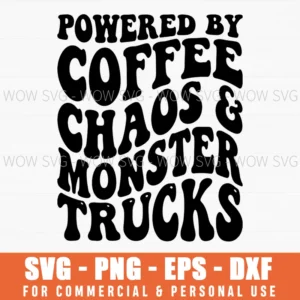
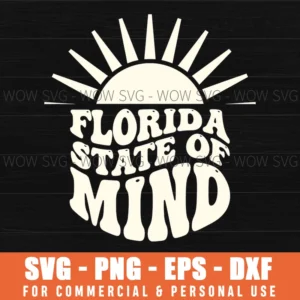
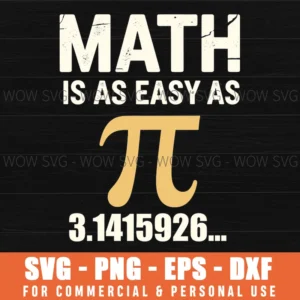
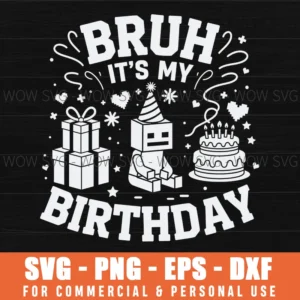
Want to try these steps on a real file? These designs from our shop are simple to cut and weed, and each one includes SVG, PNG, EPS and DXF files.
Frequently Asked Questions
Can I convert a JPG to SVG for free?
Yes. Inkscape’s Trace Bitmap creates a real SVG for free, and Cricut Design Space can turn a JPG into a cut image inside your account.
Can I convert any image I find online?
No. Only convert images you own or have permission to use. Converting copyrighted artwork or logos does not give you the right to use or sell them.
Why does my converted image have so many tiny pieces?
Photos, gradients and textures trace into many small shapes. Increase contrast, simplify the image, reduce the number of colors, and delete specks before cutting.
Does Cricut Design Space save images as SVG files?
No. It saves the converted image as a cut or Print Then Cut image in your Cricut account, but it does not export an SVG file you can use elsewhere.