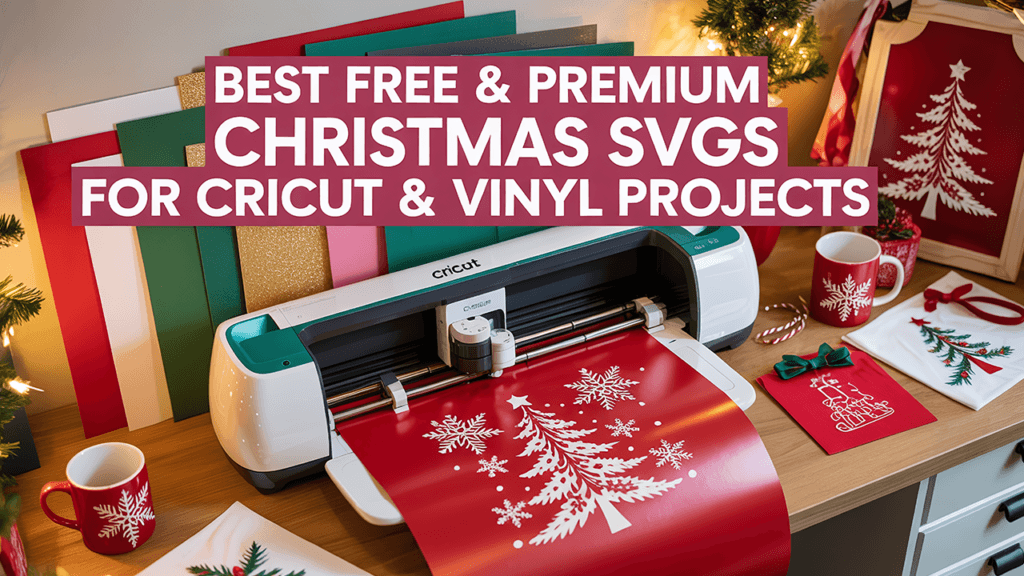
To make custom t-shirts with SVG files and a Cricut, size the design for the shirt, mirror it, cut it from heat transfer vinyl (HTV) shiny side down, weed away the extra vinyl, and press it with the time and temperature from the Cricut Heat Guide. With those five steps, a single cut file becomes a finished shirt in an afternoon. This guide covers each step, plus layering, care and a printing alternative for PNG designs.
Key takeaways
- Always mirror iron-on (HTV) before cutting and place it shiny side down on the mat.
- Size the design to the shirt: about 10 to 12 inches wide for adults and smaller for youth, toddler and baby shirts.
- Use the Cricut Heat Guide or your vinyl maker’s instructions for press settings instead of guessing.
- For multi-color designs, press each layer briefly and finish with a full press on the top layer.
- PNG designs are for sublimation, DTF or printable iron-on rather than cutting.
Supplies for custom t-shirts with SVG files
- A Cricut cutting machine (Joy, Explore or Maker series) and Cricut Design Space
- Heat transfer vinyl (HTV) in your colors; regular, glitter or other finishes
- A StandardGrip mat, or Smart Iron-On if your machine cuts matless
- A weeding tool
- A heat press, Cricut EasyPress or household iron, plus a pressing pad or firm surface
- A protective sheet such as a Teflon sheet or parchment paper, if your vinyl maker recommends one
- A pre-washed blank shirt; skip fabric softener on the first wash
- Your SVG design, unzipped and ready to upload
Need upload help? Follow how to upload SVG files to Cricut.
Step 1: Size the design for the shirt
Measure the flat front of the shirt from seam to seam and choose a width that leaves breathing room. Common starting points are 10 to 12 inches for an adult front, 7 to 9 inches for youth, 5 to 7 inches for toddlers, 3.5 to 5 inches for baby bodysuits and 3 to 4 inches for a pocket design. Keep the proportion lock closed while you type the width. Our resizing guide has a full size chart, including tumblers and mugs.
If the design has several colors, Attach the pieces of each color so they cut in the right arrangement.
Step 2: Mirror and cut the vinyl
- Click Make It in Design Space.
- On the mat preview, turn on Mirror for every iron-on mat. Your text should read backwards on screen.
- Choose your exact iron-on material setting, such as Everyday Iron-On or Glitter Iron-On.
- Place the HTV shiny side (the carrier sheet) down on the mat, dull side up.
- Load the mat and press the Go button. Menu names can change between app versions, so follow the prompts on screen.
- Before unloading, lift a corner to check that the cut went through the vinyl but not the carrier.
Mirroring is only for iron-on. Never mirror adhesive vinyl or Print Then Cut sticker paper.
Step 3: Weed the design
Weeding means removing the vinyl you do not want. Peel away the large outer piece first, then use your weeding tool to pick out the centers of letters and small gaps. Working under good light and keeping the design on the carrier sheet makes this much easier. If the design has tiny pieces, a light warm surface can soften some vinyls and help them release. For more weeding and cutting tips, see the step-by-step guide to cutting SVG files with Cricut.
Step 4: Press the design
Heat settings depend on the vinyl brand, the shirt fabric and your press. Look up your exact combination in the Cricut Heat Guide (available on Cricut’s website and in its app) or follow the instructions from your vinyl maker. They also tell you whether to peel warm or cool.
- Preheat the shirt for a few seconds to remove moisture and wrinkles.
- Find the center by folding the shirt in half and pressing a light crease. The top of an adult design usually sits about three to four fingers below the collar.
- Place the design sticky side down, carrier sheet up.
- Cover with a protective sheet if recommended and press for the time and temperature in the Heat Guide.
- If the guide says so, flip the shirt and press from the back.
- Peel the carrier at the recommended temperature. If the vinyl lifts, lay the carrier back down and press again.
Layering multiple colors
Press the bottom layer only long enough to tack it in place, then peel the carrier and position the next layer on top. Repeat, and give the final full press only after the last layer. Avoid stacking more than a few layers of HTV, since thick stacks feel stiff. Glitter HTV is generally used as the top layer rather than underneath other vinyl.
Care tips so shirts last
- Wait at least the time your vinyl maker recommends before the first wash; many suggest about a day.
- Turn the shirt inside out and wash on a gentle cycle in cool or warm water.
- Skip bleach and harsh detergents.
- Tumble dry low or hang to dry, and never iron directly on the vinyl.
Alternative: sublimation and DTF for PNG designs
Not every shirt design needs cutting. Designs whose title ends in “PNG” are 300 dpi transparent images made for sublimation, DTF, printable iron-on and print on demand. Sublimation works on light-colored polyester or poly-blend shirts, while DTF transfers work on cotton and blends in most colors. Follow your printer and transfer supplier’s instructions for mirroring and pressing. Many full-color designs in cartoon designs and Christmas designs are offered this way, while bold one- and two-color designs from funny quotes SVG files are ideal for HTV.
You may sell custom t-shirts with SVG files from Wow SVG pressed on them, but you may not resell or share the digital files.
Designs to practice with
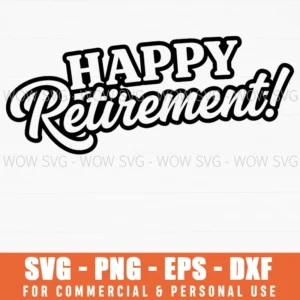
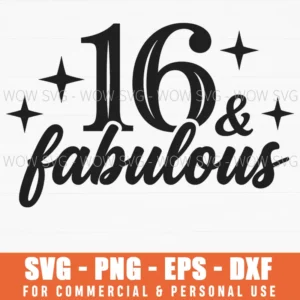
Want to try these steps on a real file? These designs from our shop are simple to cut and weed, and each one includes SVG, PNG, EPS and DXF files.


Frequently Asked Questions
Do I have to mirror the design for a shirt?
Yes, mirror any design cut from heat transfer vinyl, because the vinyl is cut from the back. Do not mirror adhesive vinyl or Print Then Cut sticker paper.
What temperature should I press HTV at?
It depends on the vinyl, the fabric and your press. Use the Cricut Heat Guide or your vinyl maker’s instructions for the correct time, temperature and peel method.
Can I use a household iron instead of a heat press?
Yes, many crafters start with an iron. Press on a hard, heat-safe surface with firm pressure and follow the vinyl maker’s iron instructions, since irons heat less evenly than presses.
Why is my vinyl peeling off after washing?
The usual causes are too little heat, time or pressure, washing too soon, or fabric softener on the blank. Re-press with the recommended settings and follow the care steps above.