Short answer: to add a white border to a sticker for free, open the free sticker outline generator, upload your PNG, move the Border thickness slider, then click Download PNG sticker. You get a 300 DPI PNG with the white border built in, ready for Cricut Print Then Cut, and you can also download an SVG cut line for Cricut or Silhouette. Nothing is uploaded: the outline is calculated in your browser.
Why stickers need a white border
Almost every die-cut sticker you buy has a thin white edge around the design. It is not only a style choice:
- It hides small cutting shifts. Even a well calibrated Cricut or Silhouette can cut a little off. With a border, the blade cuts through white instead of slicing into the artwork.
- It makes the shape simpler. Hair, fur, sparkles and thin lines become one smooth outline that is easy to cut and easy to peel.
- It makes the design pop. On a laptop, water bottle or planner, the white edge separates the drawing from the background.
How to make a sticker with a white border (step by step)
- Open the sticker outline generator and choose your image. A PNG with a transparent background gives the best result. If your image is a JPG on white, the tool notices it and ticks Remove white background for you.
- Move Border thickness. Under the slider you see the real size of the border, in inches and millimeters, for the sticker width you chose.
- Move Smooth and merge. A higher value rounds the corners and joins small pieces, such as letters or stars, into one single sticker. The status line tells you how many separate outlines you have.
- Keep Fill holes ticked if you want one solid sticker, with no gaps inside the shape.
- Pick a Border color if you want something other than white, then set the Sticker width in inches.
- Click Download PNG sticker for printing, and Download SVG cut line if you also need the cut shape.
The pink dashed line in the preview shows exactly where the machine will cut.
Using the PNG with Cricut Print Then Cut
In Cricut Design Space, click Upload, choose the PNG, and keep it as a Print Then Cut image. Because the white border is already part of the PNG, Design Space cuts around the outside edge of the border. Check the size after uploading: the PNG is exported at 300 DPI, so a 3-inch sticker is 900 pixels wide. Keep in mind that Print Then Cut works inside a limited area of the page (6.75 x 9.25 inches in current versions of Design Space), so very large stickers have to be split or resized.
Using the SVG cut line
The SVG contains only the outline shape, filled in black so you can see it, at the width you chose in inches. Use it when:
- you cut vinyl stickers without printing (for example a white vinyl backing layer under a colored design);
- you work in Silhouette Studio and want an exact cut line around a printed design (opening SVG files needs Designer Edition or higher);
- you want to offset or edit the shape in Inkscape, Illustrator or Design Space.
What border thickness should you use?
For a 3-inch sticker, a border between 1/16 and 1/8 inch (about 1.5 to 3 mm) is a safe choice. Go thicker for small stickers, kids, or very detailed designs with thin parts, and thinner for big stickers where the artwork should stay the star. If your machine sometimes cuts off-center, add a little more border rather than trying to cut right on the edge of the drawing.
Free designs that make great stickers
Simple, rounded, cartoon designs give the cleanest sticker outlines. Here are a few free ones from the WOW SVG library, each with SVG, PNG, EPS and DXF files. You will find hundreds more in the free SVG category.
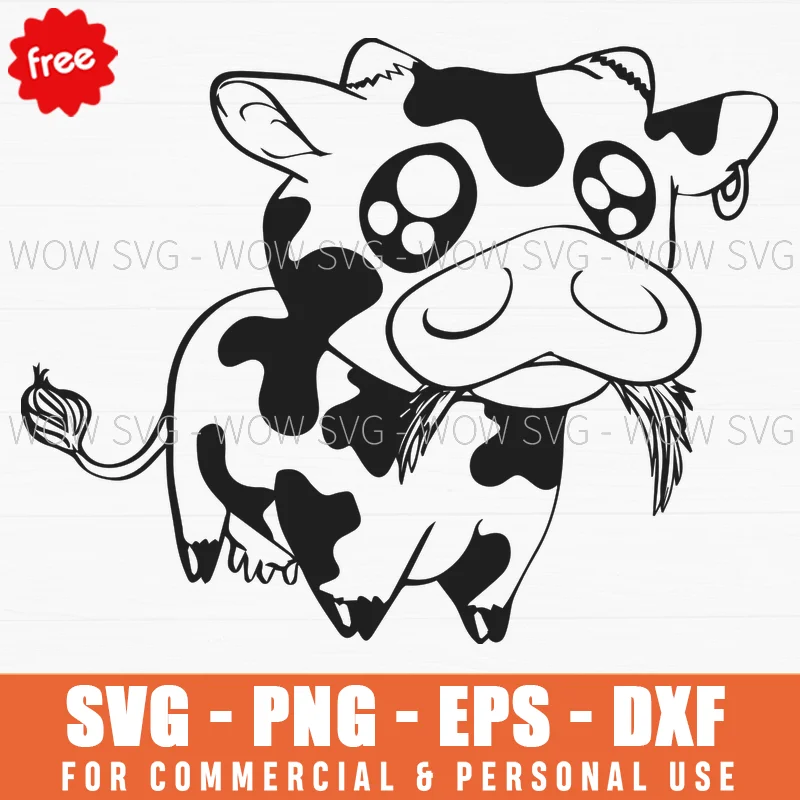
Chibi Cow Eating Grass
round shape, easy to outline
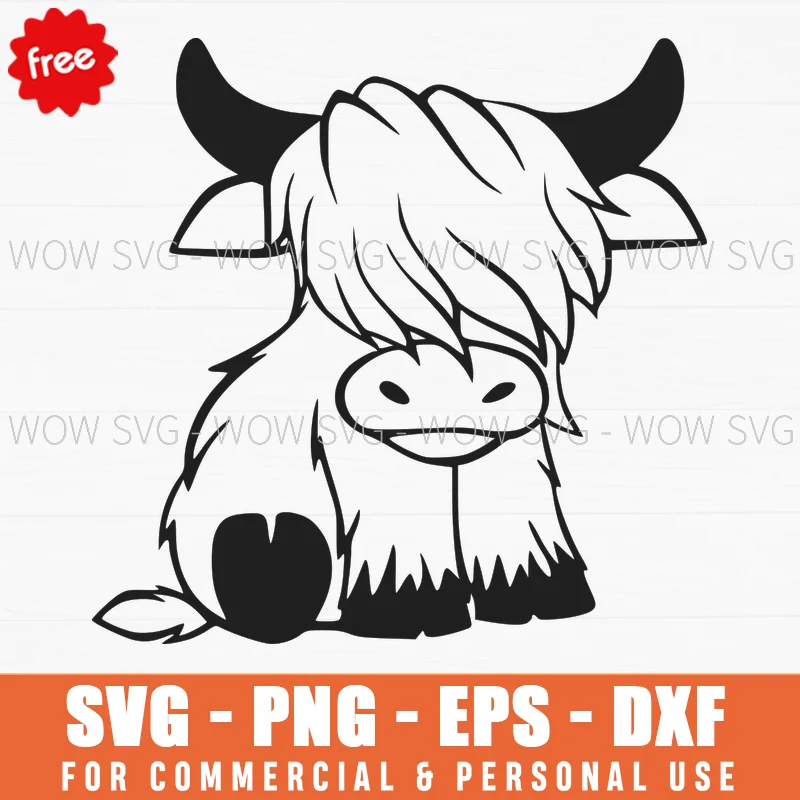
Cartoon Highland Cow
fluffy edges look great with a thick border
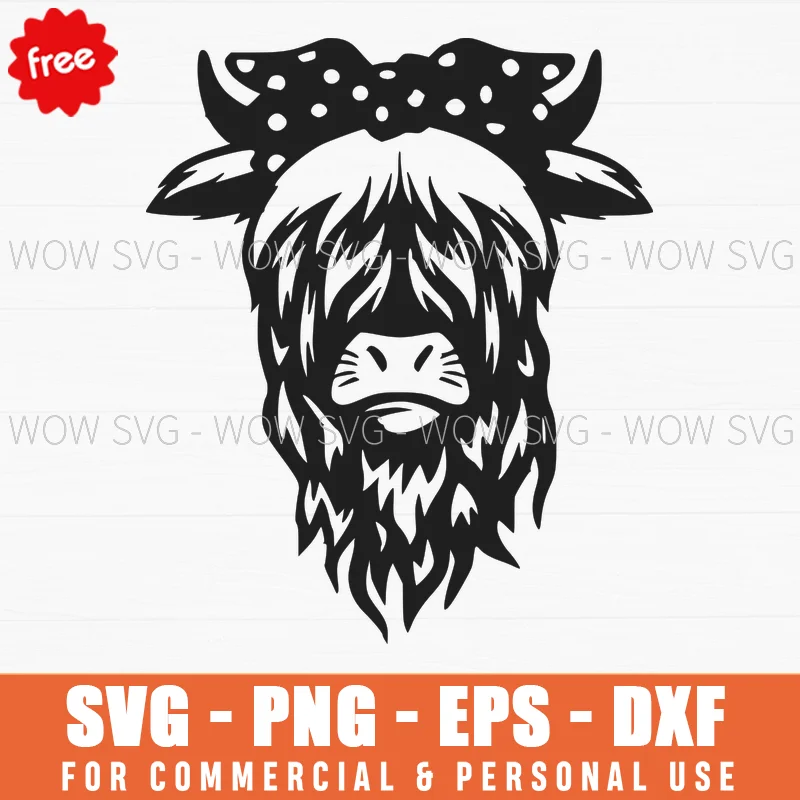
Highland Cow With Bow
a cute planner or water bottle sticker
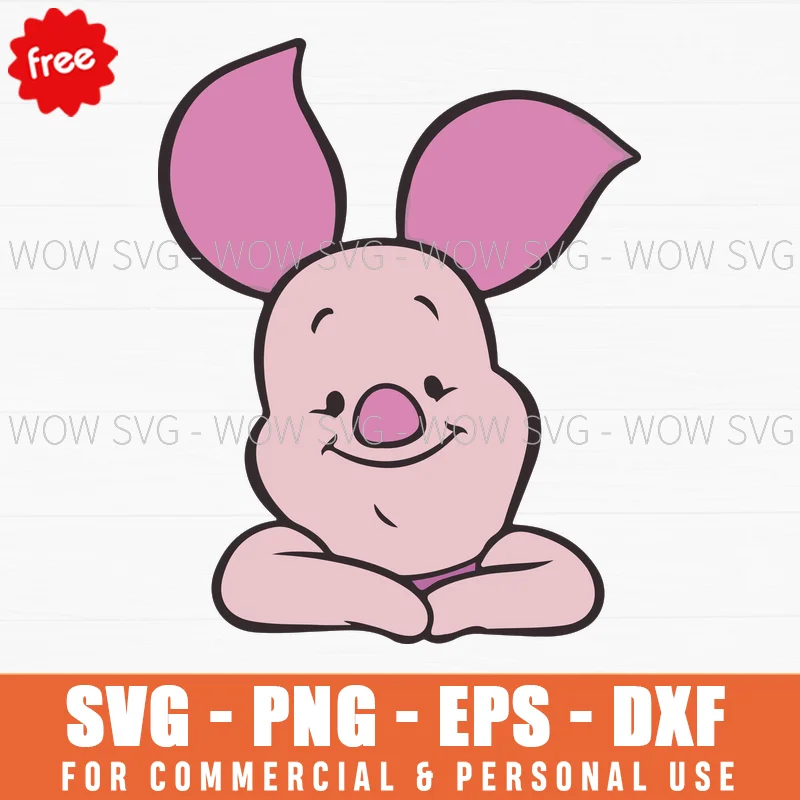
Piglet Peeking
perfect for a laptop corner
Frequently asked questions
Is the sticker outline generator really free?
Yes. There is no sign-up, no watermark and no limit on the number of stickers.
Are my images uploaded?
No. The border and the cut line are calculated in your browser, so your designs never leave your device.
Why do I get several outlines instead of one?
Parts of your design are far apart, so each part gets its own outline. Raise Smooth and merge or the border thickness until the status line says you have one sticker outline.
Can I use a photo?
Yes, as long as the subject is on a transparent or plain white background. For a photo with a busy background, remove the background first, then add the border.
Can I turn the sticker design itself into an SVG?
Yes. Use the free PNG to SVG converter to trace the design into a cut file, or the text to SVG generator for names and quotes.
Ready to try it? Open the free sticker outline generator and make your first sticker in a minute.