You can use SVG files with a Silhouette Cameo, but how depends on your version of Silhouette Studio. The free Basic Edition does not open SVG files, so you open the DXF file that comes with the design instead. Designer Edition and higher open SVG files directly, with all colors and layers. This guide shows both ways, step by step, plus how to use PNG files with the Trace tool.
Key takeaways
- Silhouette Studio Basic Edition: open the DXF file, or trace the PNG.
- Designer Edition and up: open the SVG file directly.
- DXF files do not keep colors, so you may need to group and color the layers yourself.
- Most designs at WOW SVG include SVG, PNG, EPS and DXF, so they work on Cricut and Silhouette machines alike.
Which Files Work in Silhouette Studio?
| File | Basic Edition (free) | Designer Edition and up |
|---|---|---|
| DXF | Yes | Yes |
| PNG / JPG | Yes (use Trace) | Yes |
| SVG | No | Yes |
| No | Yes | |
| EPS | No | No (use Illustrator or another editor) |
How to Open a DXF File in Silhouette Studio Basic Edition
- Download the design and unzip the folder on your computer.
- In Silhouette Studio, click File, then Open, and set the file type to DXF.
- Choose the .dxf file and click Open. The design opens on a new page.
- Select the design, right click and choose Group so it moves as one piece. Resize it with the corner handles.
- Open the Send panel, choose your material and cut.
If some parts look filled in or missing, open the Fill panel and set the fill to none, or use Release Compound Path and then Make Compound Path to fix the holes in letters.
How to Open an SVG in Silhouette Studio Designer Edition
- Unzip the download.
- Click File, then Open, and choose the .svg file, or drag it onto the mat.
- The design keeps its colors and layers. Use Ungroup to cut each color separately.
- For heat transfer vinyl, select the design and use Mirror before you send it.
How to Trace a PNG in Silhouette Studio
- Open the PNG with File, then Open, or drag it onto the page.
- Open the Trace panel and click Select Trace Area, then draw a box around the image.
- Uncheck High Pass Filter and adjust the Threshold until the whole design is yellow.
- Click Trace Outer Edge for a sticker outline (print and cut), or Trace for a vinyl cut. Delete the original image afterward.
Free SVG Files for Silhouette
These free designs include a DXF file, so you can try them in the free Basic Edition today:
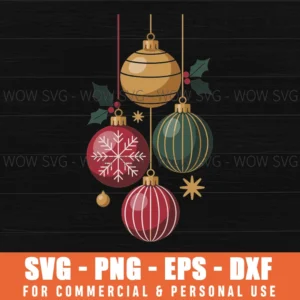
Free Christmas Ornaments SVG
hanging Christmas baubles with holly. Free, DXF included.
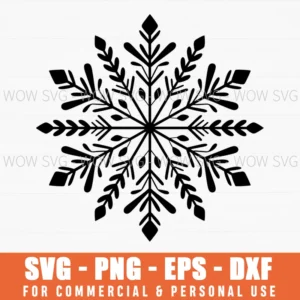
Free Snowflake SVG
a detailed six-point snowflake. Free, DXF included.
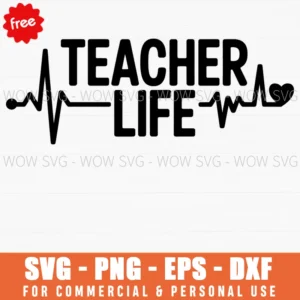
Free Teacher Life SVG
“Teacher Life” lettering with a heartbeat line. Free.

Free Scarecrow Couple SVG
two stitched scarecrow faces in hats. Free.
Find hundreds more in our free SVG category and our guide on where to find free SVG files. Not sure which file to use? See SVG, PNG, DXF and EPS explained.
Frequently Asked Questions
Do I need to pay for Silhouette Studio to use SVG files?
No. You can use the DXF file in the free Basic Edition. You only need Designer Edition if you want to open SVG files directly.
Do the designs work with Cricut and Silhouette at the same time?
Yes. For designs sold as SVG, one download includes the SVG for Cricut Design Space and the DXF for Silhouette Studio. Designs sold as PNG are print files only.
Why does my DXF file open with no color?
DXF files only store lines, not colors. Select each part and fill it with a color in the Fill panel if you want to see the layers.
Can I sell items I make with my Silhouette?
Yes. Commercial use of finished products is included with every design. You can’t resell or share the digital files themselves.