Short answer: to make a layered SVG from an image, open the free image to SVG converter, upload a PNG, JPG or WEBP, choose Multi-color (layers), set the Number of colors to the number of vinyl colors you want to cut (2 to 12), keep “Remove white background” checked and click Convert to SVG. In Cricut Design Space, each color becomes its own layer that you can cut from a different sheet of vinyl.
What is a layered SVG?
A layered SVG is a cut file split by color. Instead of one black shape, you get one group of shapes for each color: for example red for a Santa hat, white for the fur and black for the outline. You cut each layer from a different material, then stack them on a shirt, a tumbler or a wood sign.
Single-color files are easier to cut and weed. Layered files look more like the original artwork, but they take more time and more material, so it is worth planning the number of colors before you convert.
How to convert an image into a multi-color SVG
- Open the PNG to SVG converter and stay on the Image to SVG tab.
- Upload your image. Clip art, cartoons and flat illustrations with clear color areas work best.
- Set Style to Multi-color (layers).
- Choose the Number of colors. Start low (3 to 5) and only add colors if an important part disappears.
- Pick a Detail level. “Smooth” is easier to weed; “Detailed” keeps small parts but creates more tiny pieces.
- Keep Remove white background checked so the background is not cut as a layer, then click Convert to SVG and download the file.
How many colors should you choose?
- 2 to 3 colors: best for iron-on (HTV). Fewer layers means less heat on the shirt and less bulk.
- 4 to 6 colors: a good balance for adhesive vinyl on tumblers, signs and car decals.
- 7 to 12 colors: only for detailed artwork you plan to print with Print Then Cut, or for paper crafts where thickness does not matter.
If the preview shows two almost identical shades as separate layers, lower the number of colors. If an important color is missing, raise it by one and convert again.
Using the layered SVG in Cricut Design Space
Upload the SVG with Upload > Upload Image. The Layers panel lists one layer per color. You can:
- click a layer’s color swatch to match it to the vinyl you own;
- hide a layer you do not want to cut, such as a small shadow;
- select all layers and use Flatten if you would rather print the whole design and cut around it with Print Then Cut;
- resize the whole group together so the layers stay aligned.
For iron-on, press the bottom layer for only a few seconds, peel, then add the next layer, and give the full time only on the last press. Our guide on making shirts with Cricut covers pressing step by step.
Tips for cleaner layered cuts
- Simplify the image first. Remove backgrounds, shadows and gradients in any photo editor before converting.
- Use a large source image. The tool scales big images to 1,000 px for speed, but a tiny image will still give rough edges.
- Delete specks. If you see tiny dots, switch to “Smooth” or use fewer colors; each speck is a piece your machine would try to cut.
- Only convert images you have the right to use. Your own drawings, photos of your own pets and artwork you bought with a commercial license are fine.
Layered designs that are already ready to cut
Converted images save time, but a design drawn as a vector from the start is always cleaner. These free layered SVG files are ready for Design Space:
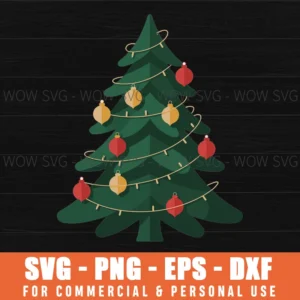
Free Christmas Tree SVG
lights and ornaments in separate colors.
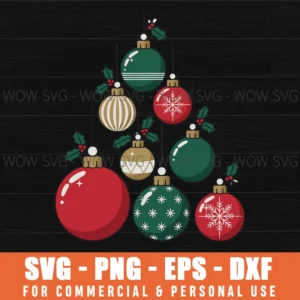
Free Christmas Ornament Tree SVG
stacked baubles, fun to layer.
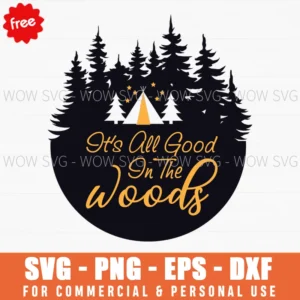
Free It’s All Good In The Woods SVG
a color tent scene for camping shirts.
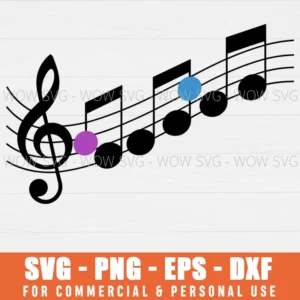
Free Music Notes SVG
colorful dots for music lovers.
Need a one-color file instead? Read how to convert PNG to SVG for Cricut. Want lettering? Use our free text to SVG converter. And if you would rather have a designer redraw your image as a clean layered file, see our custom design service.
Frequently asked questions
Can I make a layered SVG for free?
Yes. The WOW SVG converter is free, needs no account and runs in your browser, so your image is never uploaded.
Why does my layered SVG have so many small pieces?
The image probably has shading or gradients. Lower the number of colors, choose “Smooth” detail, or simplify the image before converting.
Can I convert a photo into a layered SVG?
You can, but photos rarely make good cut files because they have thousands of shades. Clip art and flat illustrations work much better.
How do I keep layers aligned when I resize?
In Design Space, select all the layers (or Group them) before resizing, so they scale together.